The list of scenes
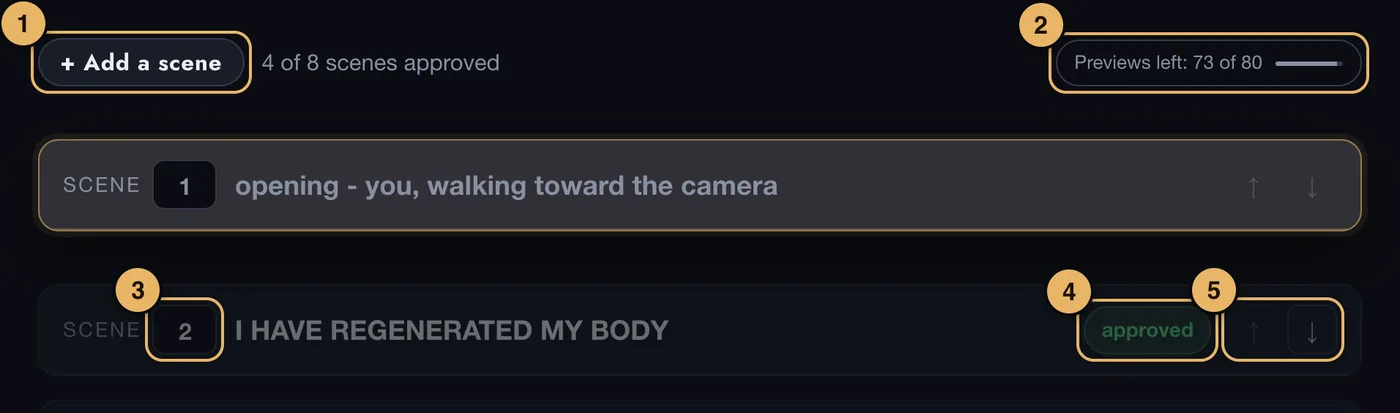
- + Add a scene. Adds an empty scene.
- Previews left. How many of this movie’s 80 previews are left. Tap it to see your final clips too, and to add more.
- Scene number. Type a new number and press Return to move the scene there.
- Approved. Shown on scenes you have approved. Approved scenes fade back so you can see what is left to do.
- Up and down arrows. Move the scene one place.
Tap the top of a card to open or close it.
A scene card
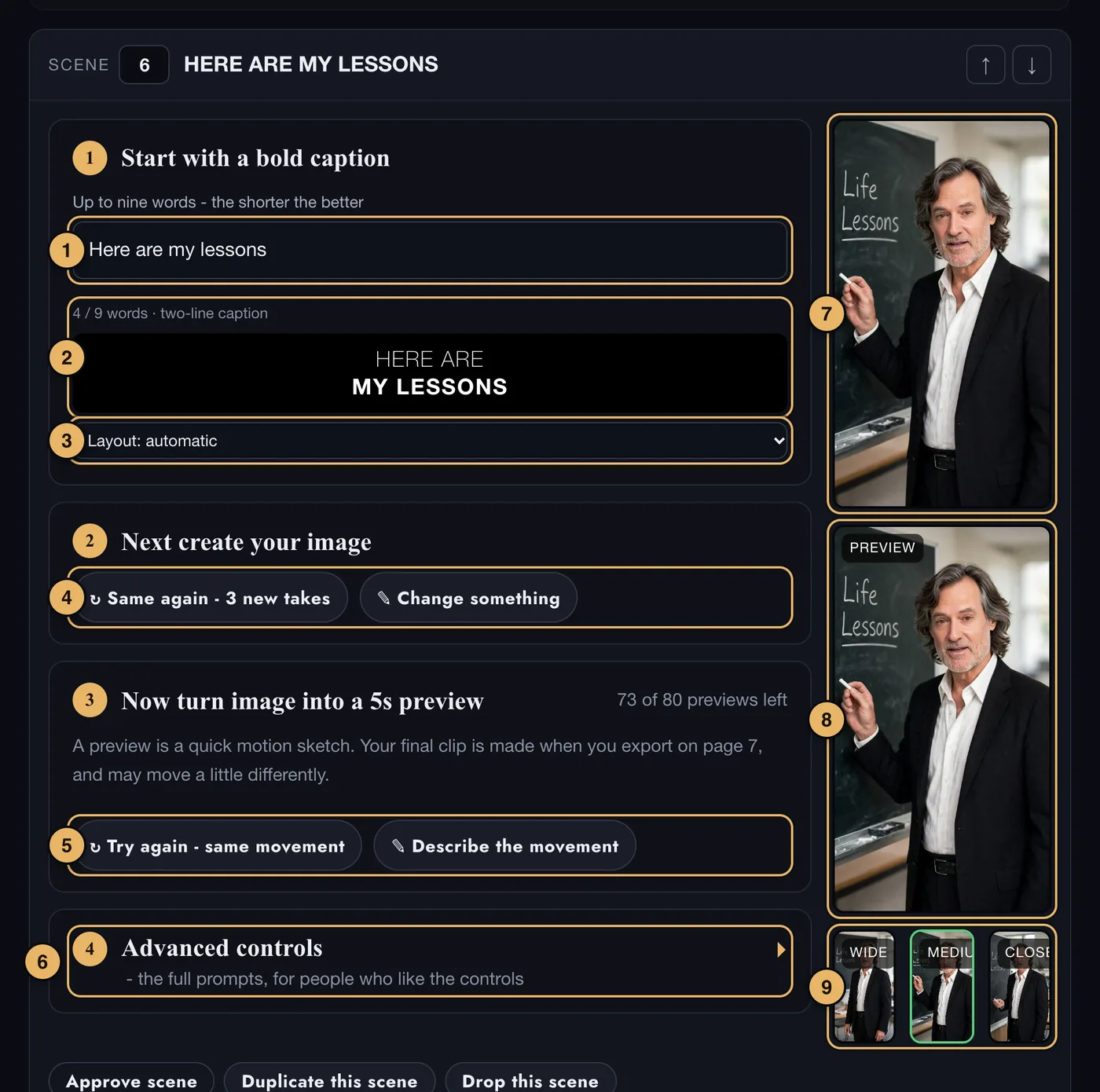
- Step 1, the caption. The words on screen. Up to nine words - the shorter the better.
- Caption preview. How the caption will be laid out.
- Layout. Leave it on automatic, or choose two lines or three lines.
- Step 2, the image. ↻ Same again - 3 new takes makes three new pictures from the same words. ✎ Change something lets you say in your own words what should be different - change only that in this picture, or start a fresh take of the scene. This can take up to 5 minutes.
- Step 3, the preview. Make the preview turns the image you picked into a five-second preview, in about 40 seconds. Once the scene has one, it says ↻ Try again - same movement. ✎ Describe the movement lets you say how it should move instead. See below.
- Step 4, Advanced controls. The full prompts, for people who like the controls: the image prompt and what moves in the five seconds.
- The chosen image. The picture this scene will be filmed from.
- The preview. The scene’s clip, marked Preview - or Final clip once your export has made it.
- The three images. One wide, one medium, one close. Tap the one you want. It gets a green edge.
Making the preview
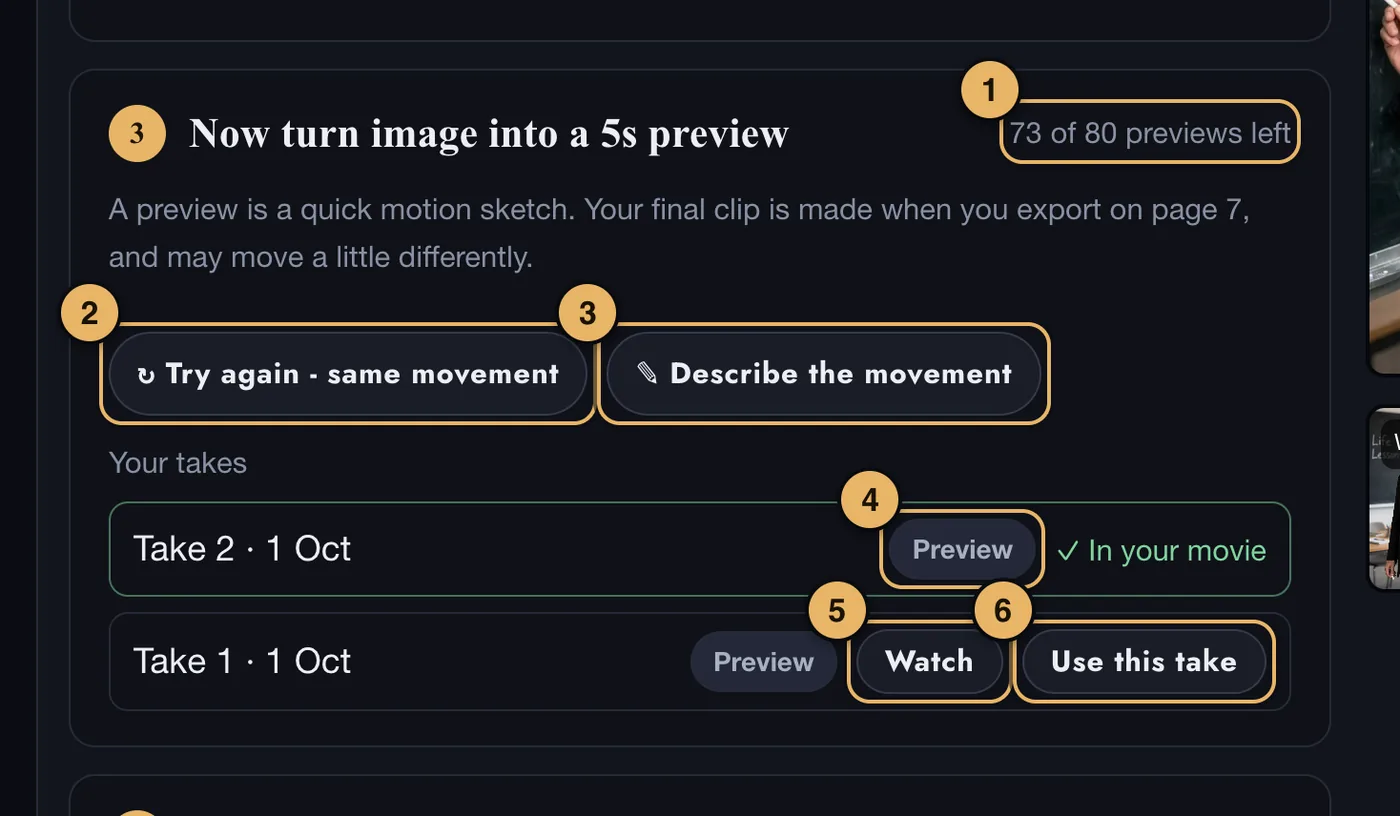
- Previews left. How many of this movie’s 80 previews are left. Each one you make uses one.
- ↻ Try again - same movement. A new preview of the same picture and the same movement. Pick an image first.
- ✎ Describe the movement. Say how it should move instead - tap an idea or type your own - then press Make the preview.
- Preview or Final clip. Every take says which it is. The one in your movie is marked ✓ In your movie.
- Watch. Plays an older take in the scene’s picture. It does not change your movie.
- Use this take. Puts that take back in your movie. Your other takes stay here.
The buttons on a card

- Approve scene. Marks the scene as finished. On an approved scene the button says Un-approve.
- Duplicate this scene. Makes a copy straight after this one.
- Drop this scene. Takes the scene out of your movie.
You can keep working on other scenes while images or a preview are being made.
Scenes cannot be moved or duplicated while images or videos are being made. Wait until they finish.
Previews and final clips
A preview is a quick motion sketch of a scene, made in about 40 seconds. Make as many as you need to get the movement right: each movie includes 80 previews. Your drafts are built from your previews.
When you press Export Final Movie on page 7, every scene’s final clip is made with our best video model, from the same picture and the same words. A final clip may move a little differently from its preview. Each movie includes 30 final clips.
A scene can be regenerated six times. After that, change the words and try a different idea.
Use an image from our database
If you would rather show than describe, choose a picture you love and we make three pictures of you in that style.
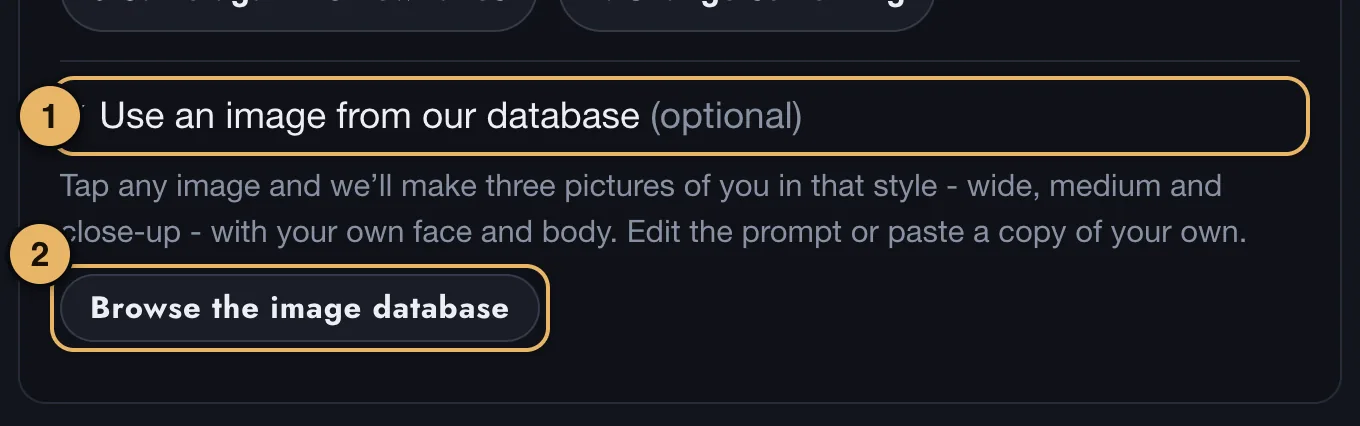
- Use an image from our database. In step 2. Tap it to open the section.
- Browse the image database. Opens the library of pictures.
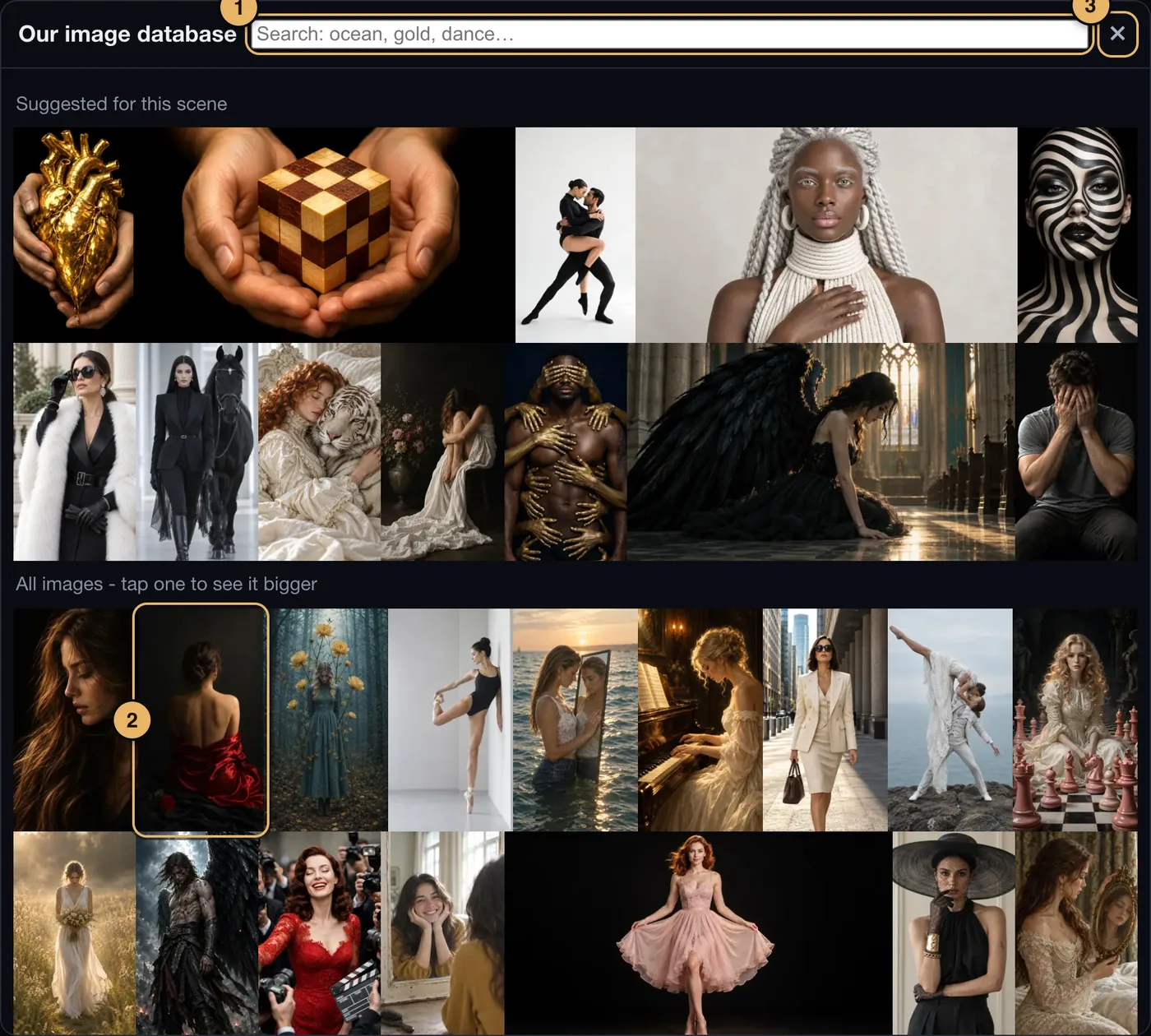
- Search. Type a word - ocean, gold, dance.
- A picture. Tap it to see it bigger, then press Use this image.
- Close. Goes back to your scene without choosing.
Choosing a picture fills in The image prompt under step 4, Advanced controls. You can edit it there, or paste a prompt of your own. Then press ↻ Same again - 3 new takes to see yourself in it.
While an image prompt is in use, it replaces What is in frame, Clothes and hair and Film style for the images. Your own words are kept, and come back when you clear the prompt.
A few pictures carry the note May not work with your photos
. They can be tried, but the result is less certain.
The opening and closing scenes
Every Vision Movie opens with you walking toward the camera on white, and closes on you in close-up with the caption “That’s My Vision”. These two scenes stay first and last, and are made from your three pictures from page 3.
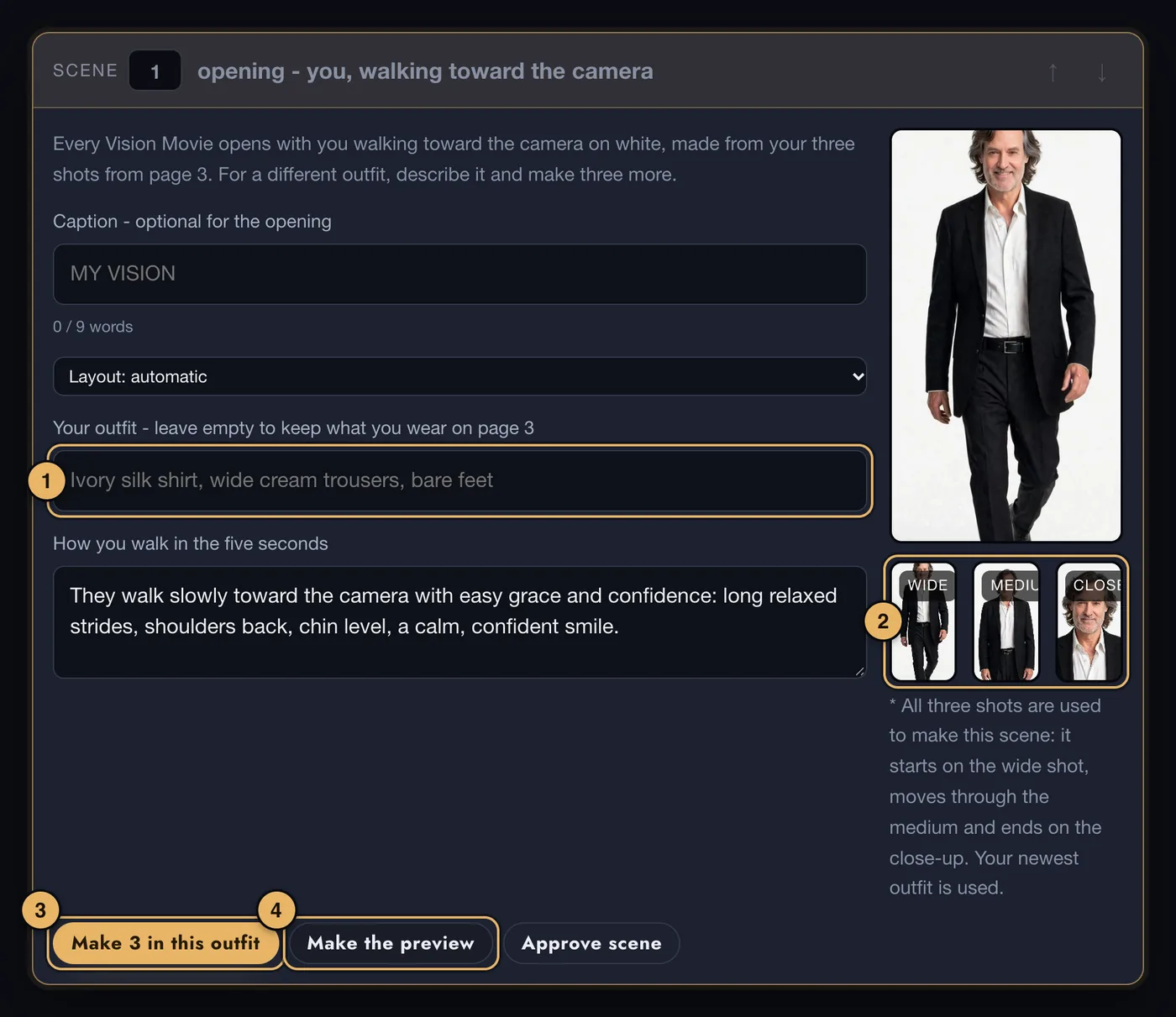
- Your outfit. Leave it empty to keep what you wear on page 3, or describe a different outfit.
- The three shots. All three are used, so there is nothing to pick here.
- Make 3 in this outfit. Makes the three shots again in the outfit you described.
- Make the preview. Makes the scene’s preview from all three shots. Once it has one, it says Make a new preview.
If something goes wrong here
See Images that are declined or fail, Waiting and Limits.